Keyboard Shortcuts
Written By Adtaria Support
Last updated 8 months ago
Overview
Keyboard shortcuts let you move through conversations and send messages faster without using your mouse. They are designed to support high-volume inbox workflows and inbox zero.
Keyboard Shortcuts Table
Note: these shortcuts are not capitalized, just press j and the action will occur
Shortcut Breakdown
Next Conversation (J)
Moves selection to the next conversation in the list.
Used for quickly working down your inbox.
Previous Conversation (K)
Moves selection to the previous conversation.
Used to navigate back without using the mouse.
Add or Remove Tags (T)
Opens tag management for the selected conversation.
Used to categorize conversations or trigger inbox workflows.
Set Follow-up Date (F)
Opens the follow-up date selector.
Used to hide conversations until a future date.
Change Pipeline Stage (S)
Opens the pipeline stage selector.
Used to update deal progress directly from the inbox.
Archive or Unarchive (E)
Archives the selected conversation or restores it.
Archived conversations return automatically when a new message is received.
Mark Read or Unread (U)
Toggles the read status of the conversation.
Used to control inbox visibility and reminders.
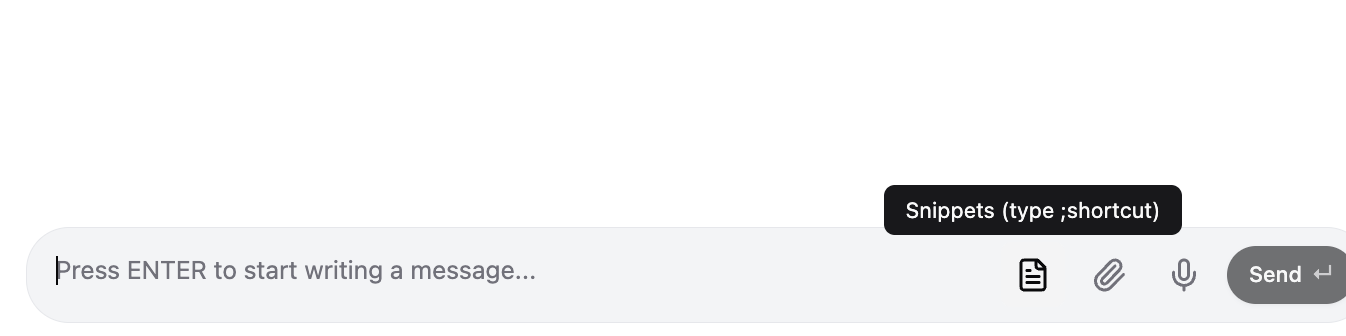
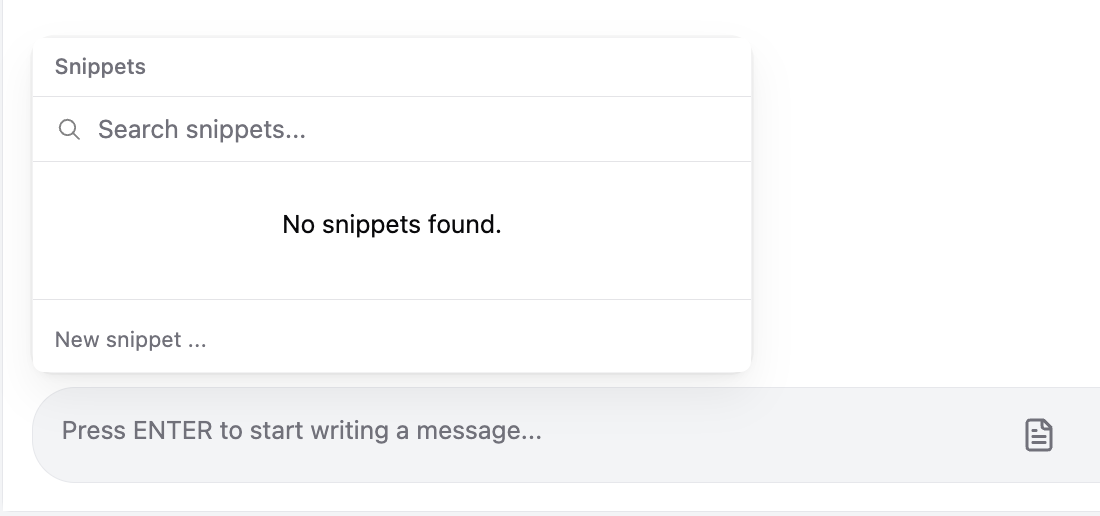
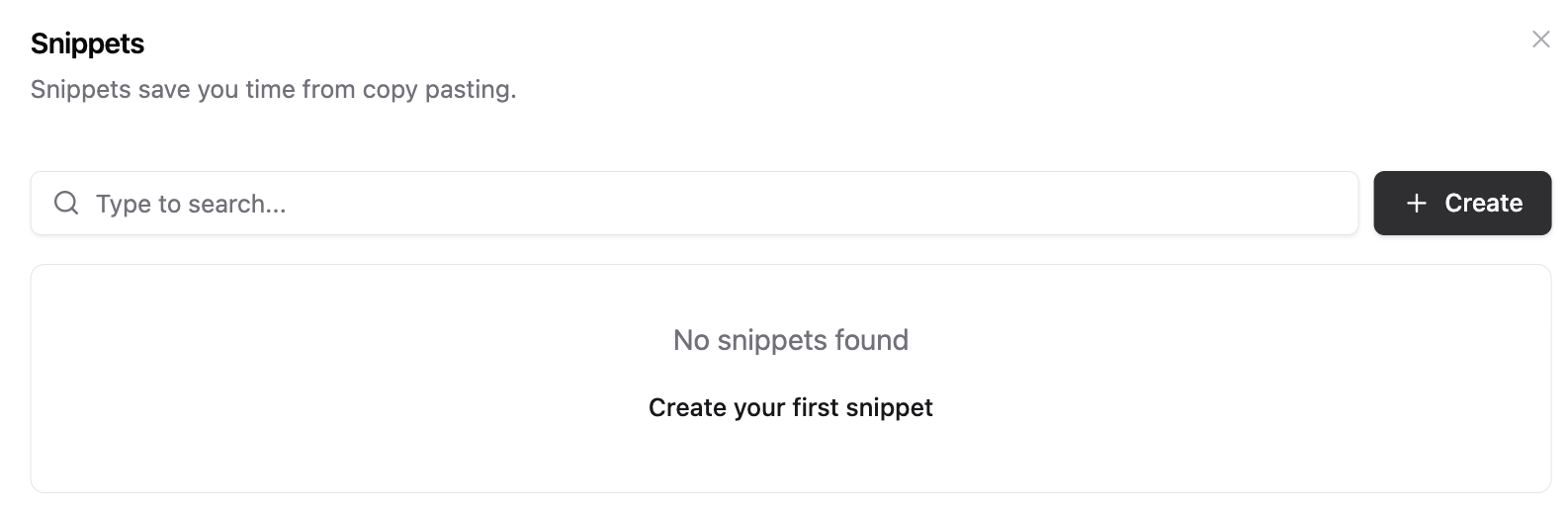
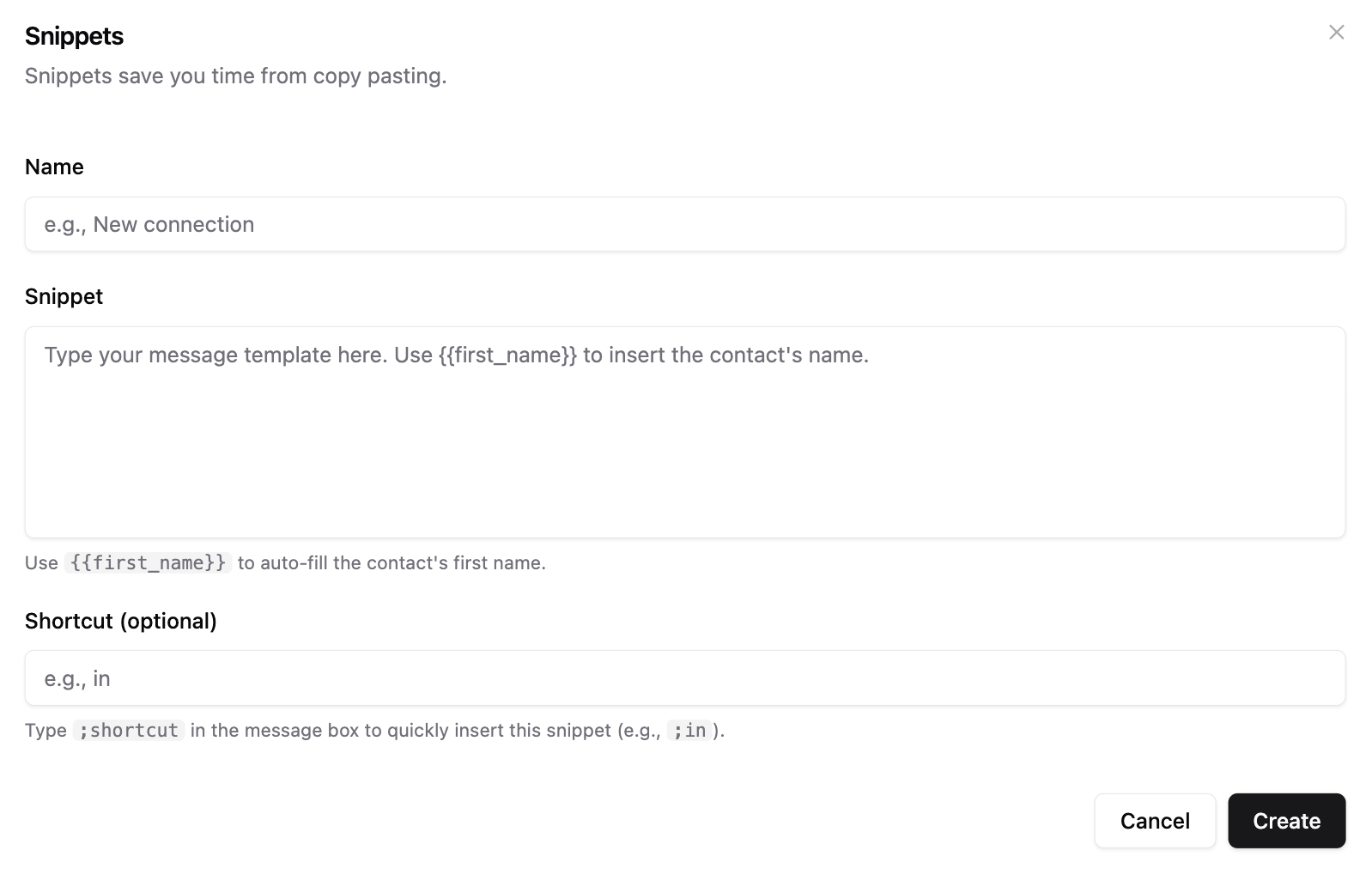
Snippets (;)
Quick access to your previously created snippets
Create message templates by using the shortcut ; or clicking the templates icon in the message bar
Focus Message Input (Enter)
Moves the cursor directly into the message input box.
Used to start typing immediately.
Send Message (Cmd + Enter)
Sends the current message.
Conversation remains in the inbox.
Send and Archive (Shift + Cmd + Enter)
Sends the message and archives the conversation.
Used for inbox zero workflows.
Send and Continue (Option + Enter)
Sends the message and moves to the next conversation.
Used for rapid outreach and replies.